VMID parameters
The IDE reads supported user parameters from the machine’s .vmid file and makes them available to GPPL analysis. This includes machine parameters, supported drilling-cycle parameters, and job parameters.
MCO parameters
Section titled “MCO parameters”Starting with Community 1.6.3 and PRO 2.0.0-beta.13, parameters from VMID MCO options and saved MCO cycles are also recognized. Their GPPL names are available in completion and hover without undeclared-identifier warnings.
If the VMID does not specify a parameter type, the IDE recognizes the name without guessing its type from a prefix. Assignment checking uses the type only when it is known.
Pair the files
Section titled “Pair the files”Keep the VMID beside the postprocessor with the same base name:
C:\Postprocessors\MyMachine\ MyMachine.gpp MyMachine.vmidOpen MyMachine.gpp. Recognized VMID variables appear in completion, hover shows the available parameter information, and their declared types participate in checking assignments.
The extension reads parameter definitions; it does not provide a replacement machine-definition editor. Maintain the VMID through your normal SolidCAM or InventorCAM workflow.
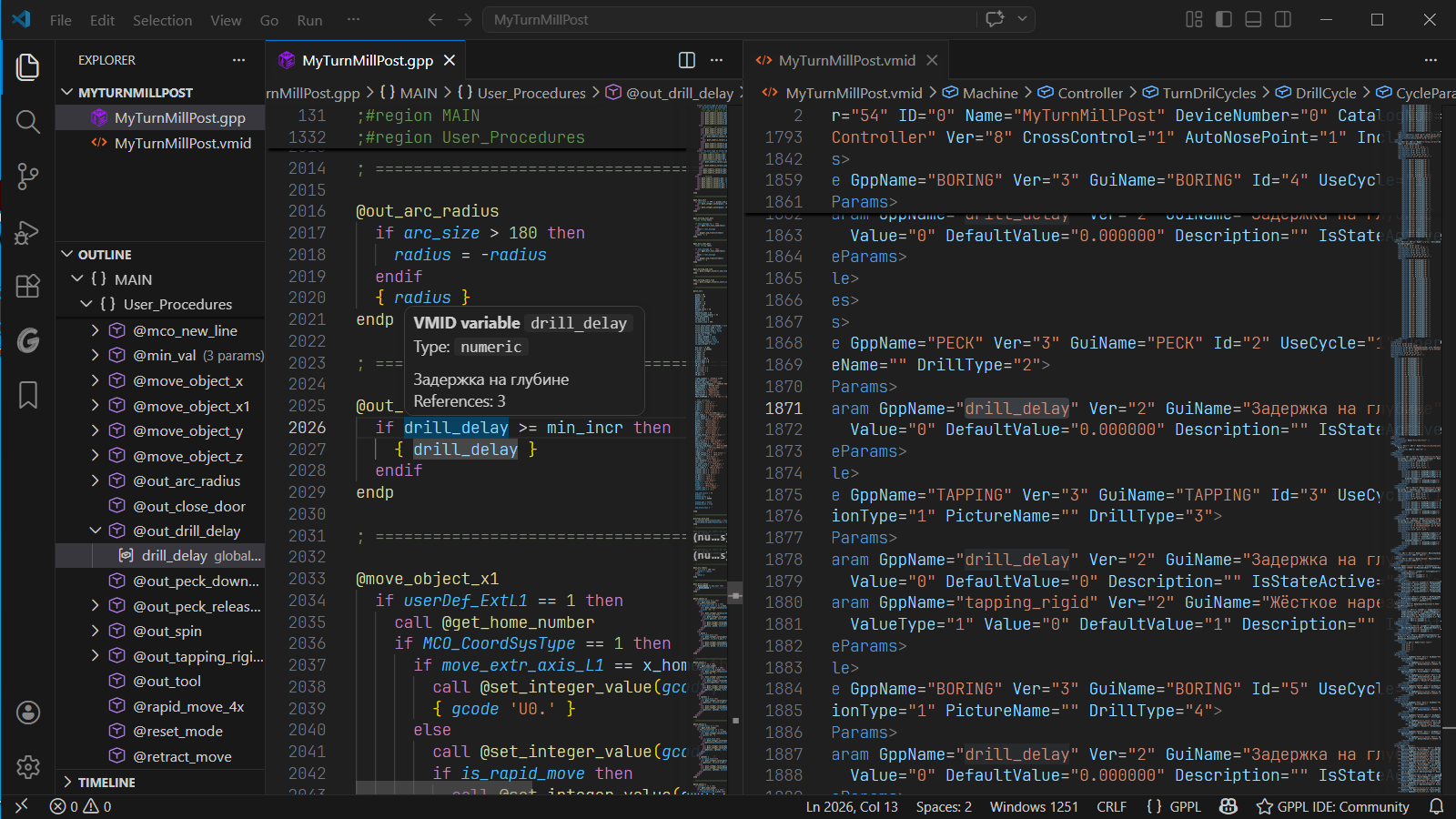
drill_delay tooltip includes a description from the machine definition. That description is Russian in this example; VMID text retains the language used by its author. Select the image to view it at full size.VMID in a PRO include component
Section titled “VMID in a PRO include component”This section is for invited PRO closed beta testers.
In a multi-file project, the VMID usually belongs to the main postprocessor. PRO can resolve the main file’s VMID variables in its included files, so each helper does not need its own duplicate VMID.
If variables work in the main file but remain unknown in a helper, check the include relationships and confirm that the component has an unambiguous main file. An appropriate entryPoints value in the project manifest can resolve ambiguity.
When a parameter is missing
Section titled “When a parameter is missing”- Check the filename, directory, and spelling of the GPPL parameter name.
- Confirm that the expected parameter exists in the matching VMID.
- After an external VMID change, reload the VS Code window to recheck the document.
- Run SolidCAM GPPL: Open Server Logs if the file still does not load.
Malformed XML, files over the VMID size limit, or XML requiring a DTD will not be loaded. The parser does not fetch external XML resources. Share only a small, sanitized example when reporting a missing parameter type.