Editor features
Completion and hover
Section titled “Completion and hover”To choose colors for variables, procedures, operators and other categories, follow Customize highlighting.
Press Ctrl+Space to request context-aware suggestions for keywords, built-in functions, variables, and procedures. System entries include reference descriptions where available. A recognized system name can have no description or confirmed GPPL type; it is still recognized by diagnostics. Hover over a symbol to inspect its known type and available documentation.
The Community 1.7.0 catalog contains 1,633 system variables and 199 procedures. New drill types, thread pitch units, pi and other names are listed in the release notes. MCO parameters from VMID are also available in hover.
The language server classifies variables, procedures, parameters, data types, keywords, operators, built-in functions, and system symbols by their role in the code. Hover identifies the symbol kind and known type; local variables include scope information, and symbols with usages show a reference count. Colors come from your theme and semantic token settings.
The current built-in function catalog contains 95 functions, including abs, substr, atan2, date, and get_axis_name. Their hover reference includes signatures, return types, localized descriptions, and usage examples where supplied. Completion also shows function documentation. Reference descriptions follow the VS Code display language: English, Russian, or German.
Preview hex escapes in strings
Section titled “Preview hex escapes in strings”Hover over a string literal containing a hexadecimal escape to see its decoded value. Available in Community 1.6.2 and PRO 2.0.0-beta.12, this preview supports both single-quoted and double-quoted strings. For example:
"T=\x22DORAZ\x22"The hover displays:
T="DORAZ"Each \xNN represents one byte decoded as Windows-1252, regardless of the file’s encoding setting. The two hexadecimal digits can use either case: \x41 becomes A, \x80 becomes €, and \xE9 becomes é. The preview leaves the source file unchanged.
- A preview appears only when the literal contains at least one valid, nonzero
\xNNescape. - Escaped backslashes and quotes (
\\,\",\') are recognized."\\x22"contains an escaped backslash, so it does not trigger a hex preview. - Control characters remain visible:
\n,\r, and\tappear as escape notation, including when written as\x0A,\x0D, and\x09. Other control bytes are shown as\xNN. - Invalid or incomplete hex escapes,
\x00, and\hsequences stay as written. They do not trigger a preview on their own.
A string containing only \n or \t does not produce this hover. Text in the preview is displayed literally, including Markdown punctuation and XML-like tags.
Smart call completion
Section titled “Smart call completion”Type call with a trailing space to open procedure completion automatically. Selecting a procedure inserts its name and, when it declares parameters, editable argument placeholders. Press Tab to move through the placeholders.
For a declaration @usr_move(numeric tx, numeric ty, numeric tz), choosing the procedure inserts @usr_move(tx, ty, tz) with the argument names selected as successive editable fields. A procedure without parameters inserts only its name. Automatic suggestions also work after inline if … then call and else call ; no Ctrl+Space is needed after the trailing space.
Wrap a selection with a built-in function
Section titled “Wrap a selection with a built-in function”Built-in functions also expand with argument placeholders. If you select an expression before choosing a built-in completion, the selection becomes its first argument. For example, selecting sample_value and choosing abs produces abs(sample_value).
This uses VS Code’s standard selection-aware snippets and needs no additional configuration. Without a selection, the first argument remains an editable placeholder. The behavior applies across the built-in catalog, including string functions such as upper, strlen, and substr.
Parameter hints and hover
Section titled “Parameter hints and hover”Parameter hints appear while entering calls. Use VS Code’s Trigger Parameter Hints command if you need to reopen them.
Hints cover built-in functions and user-defined procedures. They show declared argument types; built-in reference entries also describe optional arguments and provide localized parameter descriptions.
Hover over a declared procedure to see its signature, with parameter names and types in declaration order. Hover and parameter hints use the same signature from the source code. System procedures without a source declaration show their known catalog information; an unknown signature is not presented as a procedure with no parameters.
The first hover line contains the procedure kind and full signature. Horizontal rules separate catalog reference text, the comment to the right of the declaration, and structured documentation. Parameter descriptions stay with the structured documentation; empty sections are omitted.
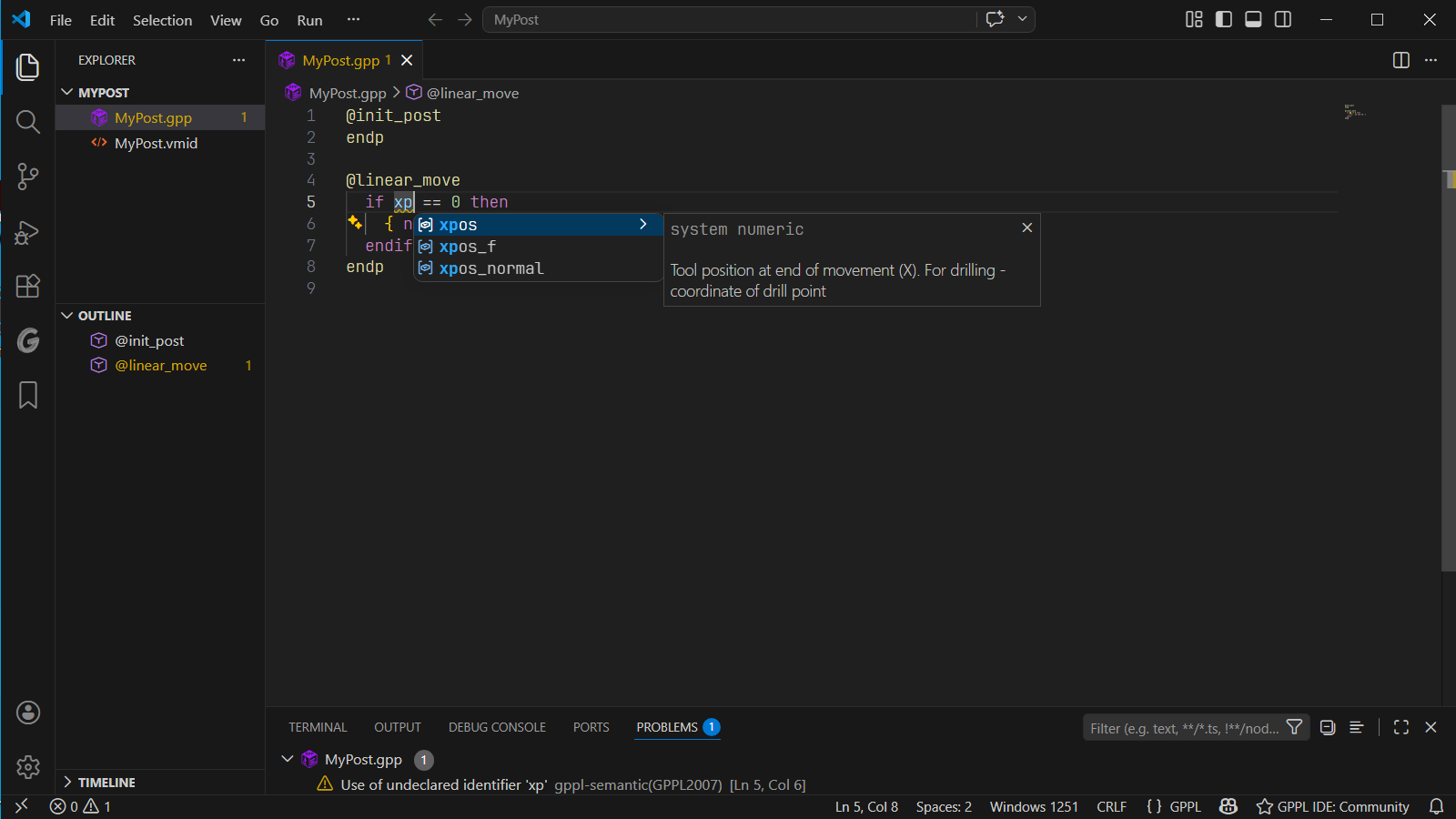
xp. The warning for the unfinished identifier disappears once a valid name is entered. Select the image to view it at full size.Document your procedures and variables
Section titled “Document your procedures and variables”Available in Community 1.6.0 and the current PRO beta. Structured comments and automatic templates are included in both editions.
Type ;;; on a new, otherwise empty line to insert a documentation template:
;;; <summary>;;;;;; </summary>The cursor starts inside summary. If a procedure declaration is immediately below that line, the template also includes a param tag for each declared parameter, in source order. Press Tab to move from the summary to the parameter descriptions. Array parameters use their names without the dimension suffix.
Indentation and line endings are preserved. Undo returns the generated block to ;;;. Typing inside an existing ;;; block or pasting the whole marker does not expand another template. Automatic expansion uses a single cursor; keep the declaration directly below the marker to include its parameters.
For a procedure with parameters:
- Put the cursor on the empty line immediately above its declaration.
- Type
;;;one character at a time. - Enter the summary, then press Tab to fill each parameter description.
For example, above @usr_message(string text, integer repeat_count), the generated block contains:
;;; <summary>;;;;;; </summary>;;; <param name="text"></param>;;; <param name="repeat_count"></param>@usr_message(string text, integer repeat_count)endpA comment to the right of a declaration provides a short description:
local numeric clearance ; Clearance above the part.For a longer description, place a block of ;;; comments immediately before the declaration. Use summary for the purpose, param for each parameter, and remarks for usage notes:
;;; <summary>Write a setup message.</summary>;;; <param name="text">Message text.</param>;;; <param name="repeat_count">Number of repetitions.</param>;;; <remarks>Called during setup.</remarks>@usr_message(string text, integer repeat_count) ; Procedure bodyendpDescriptions appear in hover, and parameter descriptions also appear in parameter hints. Parameter names in param tags match the declaration without regard to case. Names and types always come from the GPPL declaration.
The same summary and remarks tags work before local or global declarations. If one declaration contains several variables, they share its documentation. A trailing comment remains available alongside the block description.
Every line of the block must start with ;;;, allowing indentation. A blank line or ordinary comment between the block and declaration breaks the association. Tags may span several ;;; lines. Use XML escapes such as & and < for special characters. A malformed block is ignored; an existing trailing comment still works.
These are ordinary GPPL comments and use the .gpp file’s encoding. Community displays documentation within the current file; PRO can also show it in hover for procedures and globals resolved through the project’s includes.
Synchronize parameter documentation
Section titled “Synchronize parameter documentation”Since Community 1.7.0: F2 on a procedure parameter updates its declaration, uses and the matching <param name="..."> in the adjacent ;;; block together. Descriptions and other procedures are preserved. Undo/Redo applies to the entire rename.
After adding, removing or reordering parameters, place the caret in the procedure or its documentation and run SolidCAM GPPL: Synchronize Procedure Documentation from the Command Palette or editor context menu. The command adds missing tags and orders them by the current signature, retaining multiline descriptions, summary and remarks. Tags absent from the signature stay after the current parameters, with a message listing them for manual review. A manual rename is not inferred from parameter position: use F2 or review retained descriptions yourself.
The command updates an existing adjacent XML block. Put each <param> element on its own ;;; line or group of lines. Correct incomplete XML, duplicate tags or an incomplete signature before retrying. The command edits the open buffer without saving or changing encoding, supports one Undo/Redo, and makes no edit when the documentation already matches. It refuses a response if the document changed while it was being prepared. These changes are available in Community 1.7.0 and PRO 2.0.0-beta.14 (closed beta).
Documentation editing improvements
Section titled “Documentation editing improvements”Enter continuation and Markdown hover formatting are available in Community 1.6.1 and PRO 2.0.0-beta.11. PRO also uses the same Markdown formatting for documentation resolved through includes.
Continue comments with Enter
Section titled “Continue comments with Enter”Press Enter inside a ;;; documentation line to start the next line with ;;; automatically. The editor preserves the indentation before the comment marker. This works inside summary, param, and remarks, including when you split a description before its closing tag:
;;; <param name="x">X-axis offset.;;; Measured in the current output units.</param>Empty ;;; lines and lines ending with a closing XML tag also continue the comment, so you can add another paragraph or tag. To leave the comment block, delete the ;;; prefix on the new line. Ordinary ; and ;; comments, ;;;; separator lines, and comments to the right of GPPL code do not receive this prefix.
Undo removes the line break and its prefix together; Redo restores them. Tab still moves between descriptions in an automatically generated template. If you need an indented Markdown list or code block, add its indentation after ;;; .
Format hover descriptions with Markdown
Section titled “Format hover descriptions with Markdown”XML tags identify the documentation sections; Markdown inside them formats the hover text. Use bold, italic, inline code, links, headings, tables, lists, and fenced code blocks in summary, remarks, and parameter descriptions. Comments to the right of declarations also support Markdown in hover.
;;; <summary>;;; Outputs the `TRANS` command with **axis offsets**.;;;;;; - Offsets use the current output units.;;; - Check the active coordinate system first.;;; </summary>;;; <param name="x">X-axis offset</param>;;; <param name="y">Y-axis offset</param>;;; <param name="z">Z-axis offset</param>@out_trans(numeric x, numeric y, numeric z)endpShort parameter descriptions appear on one line, for example x - X-axis offset. Multiline descriptions and block content, such as lists or code, keep a separate paragraph below the parameter name. Parameter hints and completion retain their existing plain-text presentation of author descriptions.
Keep ;;; on every line, including blank lines inside a description. One space after the marker is a separator; additional indentation is preserved for Markdown. Two trailing spaces before a line break produce a Markdown hard break.
XML still requires & for & and < for < in text. Alternatively, wrap the text in CDATA; the Markdown is preserved:
;;; <remarks><![CDATA[;;; ```gppl;;; if x < 0;;; x = 0;;; endif;;; ```;;; ]]></remarks>Place this remarks block with the other documentation immediately above the declaration. Plain Markdown in ;;; comments without XML documentation tags does not become structured documentation.
Navigate and rename
Section titled “Navigate and rename”| Action | Default Windows shortcut |
|---|---|
| Go to Definition | F12 or Ctrl+Click |
| Find All References | Shift+F12 |
| Rename Symbol | F2 |
| Go to Symbol in Editor | Ctrl+Shift+O |
| Show completion | Ctrl+Space |
Community resolves user symbols within the current file. The PRO closed beta adds cross-file operations for indexed include components for invited testers. A local variable remains local when renamed; inspect the proposed changes before applying a wider rename.
Open a neighboring include
Section titled “Open a neighboring include”Ctrl+Click the filename in inc "other" to open other.gpp beside the current file. Both single and double quotes are supported; .gpp may be omitted. Community’s clickable links accept a neighboring filename, not an absolute path or subdirectory path.
Opening the file does not enable cross-file symbol analysis in Community. See PRO include paths and navigation for multi-file analysis and its path rules.
Format and fold
Section titled “Format and fold”Press Shift+Alt+F to format. The GPPL formatter uses two spaces per nesting level and normalizes operator, comma, and code-generation spacing based on the parse tree. It preserves blank lines, string literals, and comments. With syntax errors present, valid lines are still formatted; lines whose tokens cannot be safely reconstructed are left unchanged.
| Rule | Example |
|---|---|
| Indentation | 2 spaces per nesting level |
| Assignment | x = 1 |
| Comparison | x == 1, x != 2, x <= 10 |
| Arithmetic | x + 1, y * 2 |
| Word operators | x eq 1, a and b |
Power ^ |
x^2 (no spaces) |
| Unary sign | z = -x + 2 (no space after sign) |
Colon : |
result:'+3.3' (no spaces) |
Comma , |
f(a, b) (space after) |
| Code-gen braces | { nl, 'G1' } (spaces inside { }) |
The Outline lists procedures, variables, and regions; breadcrumbs help you navigate procedures and regions. Folding covers procedures, conditional and loop blocks, comments, and custom regions:
;#region Helper procedures@usr_sampleendp;#endregionRegion names may contain spaces and other characters. Keep a region within a procedure or around complete procedures. A region crossing a procedure boundary produces GPPL2009; folding still works.
Snippets
Section titled “Snippets”Type a prefix, select the corresponding snippet from suggestions, and press Tab to insert it. Continue pressing Tab to move through its editable fields:
| Prefix | Result |
|---|---|
proc or procedure |
Procedure with endp |
global or local |
Variable declaration with a type choice |
if / ife |
Conditional block |
ifelse / ifel |
Conditional with an else branch |
while or wh |
Loop with endw |
cg or codegen |
Code-generation block |
region / #region |
Named folding region |
call |
Procedure call |
Colors follow your VS Code theme and semantic token settings. See Color theme and highlighting to select the bundled theme (GPPL Classic Dark) or customize your current theme.
Watch the workflows
Section titled “Watch the workflows”The editor demonstrations include the README’s animations for completion, smart calls, wrapping a selection, navigation, rename, and formatting, plus diagnostic and parameter-hint screenshots.